How to Add Music to Your Invitation Website (Embed Spotify)
By Link of Time • Published Jul 14, 2026
How to Add Music to Your Invitation Website is one of the easiest ways to create a more immersive and memorable experience for your guests. Whether you're planning a wedding, birthday celebration, or corporate event, adding background music helps set the mood before guests even arrive. With Link of Time's Spotify embed feature, you can add your favorite playlist or song directly to your invitation website in just a few simple steps.
In this guide, we'll show you how to embed Spotify music into your Link of Time invitation website, explain which packages include this feature, and share a few best practices for choosing the perfect soundtrack.
Why Add Music to Your Invitation Website?
Music creates emotion. A carefully chosen playlist or song can instantly give guests a feel for your event before they read the details.
For example:
- Wedding: Romantic love songs, ceremony music, or your favorite couple's playlist
- Birthday: Fun party playlists or the celebrant's favorite songs
- Corporate Events: Relaxing background music or your company's event playlist
Adding Spotify music helps personalize your invitation and creates a richer digital experience for everyone who visits your event website.
Note: Spotify embedding is available for packages that include the Spotify feature. You can compare available plans on the Link of Time Packages page.
How to Embed Spotify Music into Your Invitation Website
Embedding Spotify music only takes a few minutes.
Step 1: Open Spotify
Go to Spotify and open the playlist or song you want to use.
You can use:
- A single song
- An album
- A playlist
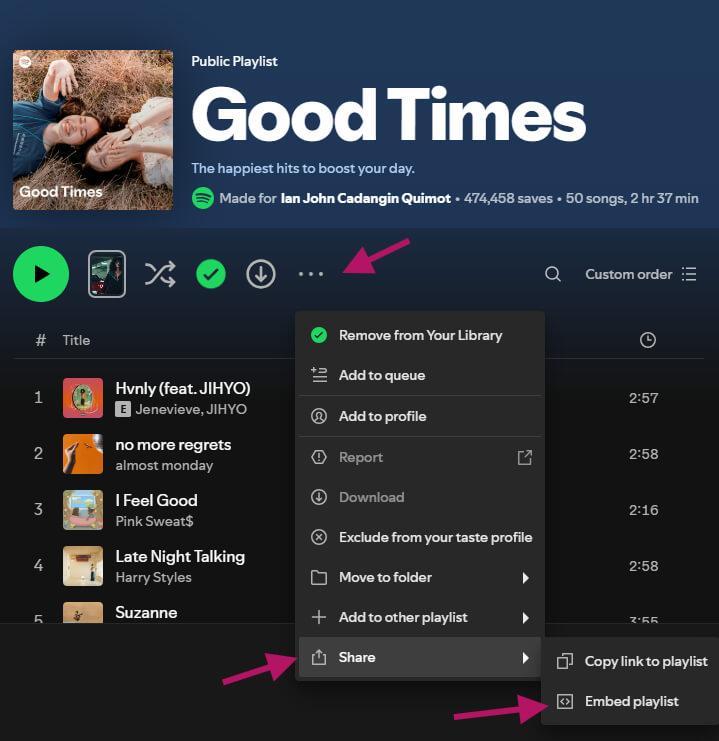
Step 2: Open the Share Menu
Click the three dots (⋯) beside the playlist or song.
Then select:
Share → Embed Playlist (or Embed Song, depending on what you're sharing).
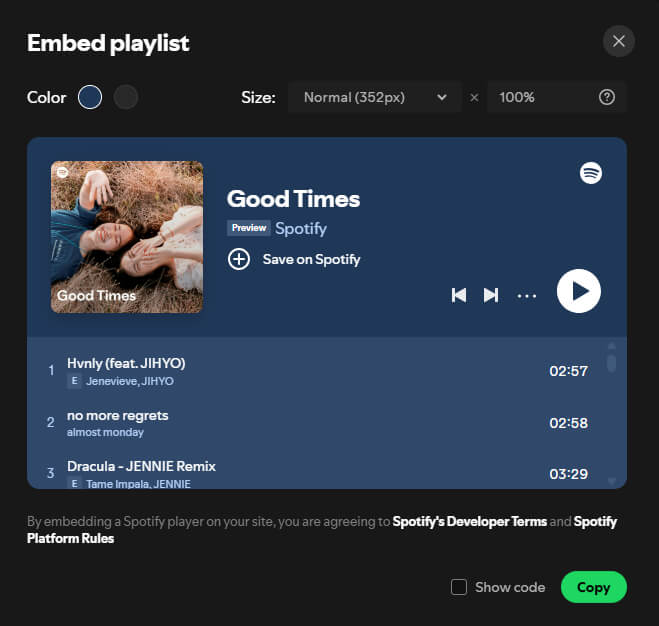
Spotify will generate an embed code similar to this:
<iframe data-testid="embed-iframe" style="border-radius:12px" src="https://open.spotify.com/embed/playlist/37i9dQZF1DWT9NTMXOEmdE?utm_source=generator&si=4b45fd1149424bcb" width="100%" height="352" frameBorder="0" allowfullscreen="" allow="autoplay; clipboard-write; encrypted-media; fullscreen; picture-in-picture" loading="lazy"></iframe>
Unlike YouTube or Google Maps, copy the entire embed code instead of extracting only the URL.
Spotify also lets you customize the embed before copying it. You can change the theme color and player size to better match your invitation.
For complete instructions, visit Spotify's official guide: https://developer.spotify.com/documentation/embeds/tutorials/creating-an-embed
Step 3: Copy the Embed Code
Click Copy to copy the complete Spotify embed code.
Step 4: Open Your Link of Time Event
Navigate to your Event Dashboard.
Click Customize Event to open the event customization wizard.
Continue through the event setup until you reach the Customize Event page.
Step 5: Paste the Spotify Embed Code
Locate the Spotify field and paste the entire embed code that you copied from Spotify.
Save your changes.
That's it!
Your Spotify player will automatically appear on your invitation website.
Best Practices for Choosing Event Music
When selecting music, think about the atmosphere you want guests to experience.
Some ideas include:
- Romantic acoustic playlists for weddings
- Upbeat party songs for birthdays
- Elegant instrumental music for formal celebrations
- Corporate lounge playlists for business events
Avoid songs with explicit lyrics unless you're sure they're appropriate for all guests.
Pair Music with Other Interactive Features
Spotify works even better when combined with other interactive features available in Link of Time.
For example, you can also embed venue directions (How to Add Google Maps to Your Invitation Website (Embed & Direct Link Guide)) so guests can easily find your event location.
If you're creating a more immersive invitation, consider adding highlight videos as well by following How to Add Videos to Your Invitation Website (Embed YouTube Videos).
Together, these features transform a simple invitation into an engaging digital event experience.
Frequently Asked Questions
Conclusion
How to Add Music to Your Invitation Website is a simple enhancement that can make your invitation feel more personal, engaging, and memorable. By embedding a Spotify playlist or song, you can give guests a preview of your celebration's atmosphere before the event even begins.
Combine Spotify with videos, maps, countdown timers, and personalized invitations to create a complete digital experience your guests will love. Start customizing your Link of Time invitation today and make every visit to your event website unforgettable.
Comments
Join the conversation and share your thoughts.
No comments yet
Be the first to share your thoughts.
